Prepare bank statement data for Excel
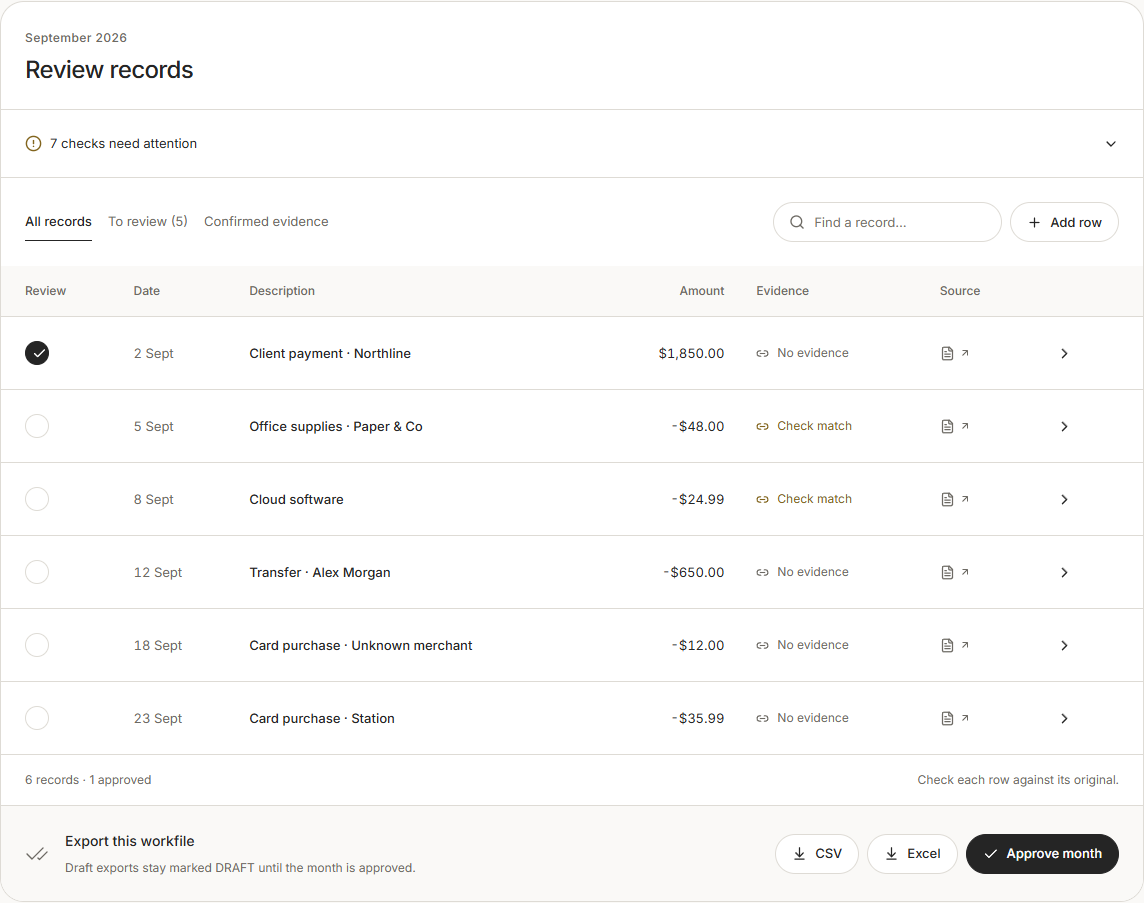
Use a bank-provided CSV when available, preserve the original download and review the imported dates, descriptions and amounts against the statement. For PDFs or scans, check extracted rows before relying on the spreadsheet. FigureLane's local MVP supports reviewed statement records and exports; hosted uploads and workspaces are currently prelaunch.
Choose the clearest available source
Look for your bank's transaction download alongside the PDF statement. A CSV may give you structured rows directly, while the statement remains useful for checking account details, dates and balances. Keep both when available.
Create a working copy before editing. Record the business, account and month in the workbook so someone else can understand what the table covers. Avoid combining accounts without a clear way to identify each row.
Which columns should I check?
- Date: confirm the day and month order. An ISO date such as 2026-09-04 avoids ambiguous numeric dates.
- Description: preserve the bank's original description before adding a clearer explanation in another column.
- Amount: use one consistent convention. FigureLane expects credits to be positive and debits negative in a signed Amount column.
- Debit and Credit: if the download separates them, retain both columns and check how blank values are handled.
- Balance: preserve it when supplied. Do not label a running balance as a transaction amount.
- Currency: keep each account's currency clear. A column label does not convert an amount into another currency.
Check totals and individual rows
Compare the opening balance plus credits minus debits with the closing balance. Investigate differences before handing over the workbook. Look for repeated rows, missing transactions, reversed signs and dates outside the period.
Then compare individual rows with the statement. A balance check can miss offsetting errors, and it cannot confirm that a payment's description or receipt match is right.
What changes when the source is a PDF or photo?
Selectable PDF text and scanned images need different extraction methods. Check that every statement page is present and the rows remain readable. Use a clear, straight image rather than a photo taken at an angle.
Where supported, Excel's Data from Picture can turn an image of a table into editable data. Microsoft instructs users to review the results and make corrections before inserting them. Extraction does not replace checking the source.
Keep the workbook useful for the next reviewer
Include a source filename or access-controlled link for each relevant record, and identify unresolved questions. Confirm that the intended recipient can open the originals. Agree any accounting import format with your bookkeeper rather than assuming every CSV is compatible.
FigureLane's local MVP reads supported CSVs and conservatively extracts English PDF or scanned statement data, then requires review. It exports Excel or a generic bank CSV without directly posting into accounting software. Hosted workspaces and uploads remain prelaunch.
Download a fictional bank CSV example with ISO dates, signed amounts and running balances.
Common questions
Is CSV usually easier to review than a scanned statement?
A bank-provided CSV already contains structured rows. Keep the statement too, so you can compare the imported data with its source.
Does a matching closing balance prove the data is correct?
No. Offsetting errors can still agree in total. Review individual rows, dates and supporting documents as well.
Can FigureLane upload my statement on the public site?
Hosted uploads and workspaces are currently prelaunch. The statement review and export workflow is implemented in the local MVP.
Sources
Product details were checked on 4 October 2026. Check the provider’s website before choosing a service.